
Erfahren Sie, wie Sie Heuristiken in Raffinerien verwenden können, um die Datenkennzeichnung zu automatisieren
Labeling functions are the simplest concept of a heuristic. They consist of some Python code that labels the data according to some logic that the user can provide. This can be seen as transferring the domain expertise from concepts stored in a person's mind to explicit rules, which are human- and machine-readable. ### Creating a labeling function To create a labeling function simply navigate to the heuristics page and select "Labeling function" from the "New heuristic" button.
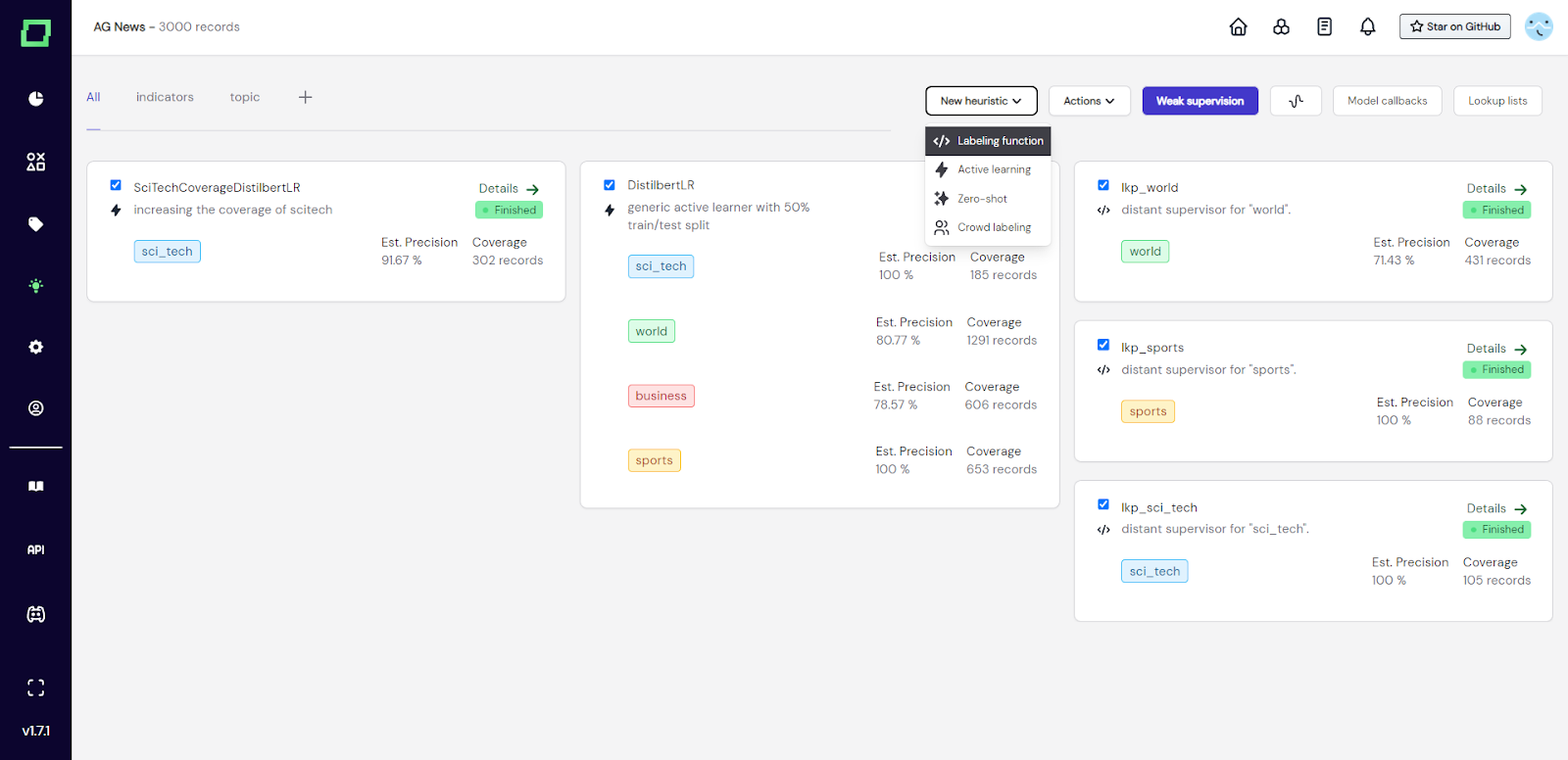
Fig. 1: Screenshot of the heuristics page where the user is about to add a labeling function by accessing the dropdown at the top.
After that, a modal will appear where you need to select the labeling task that this heuristic is for and give the labeling function a unique name and an optional description. These selections are not finite and can be changed easily later.
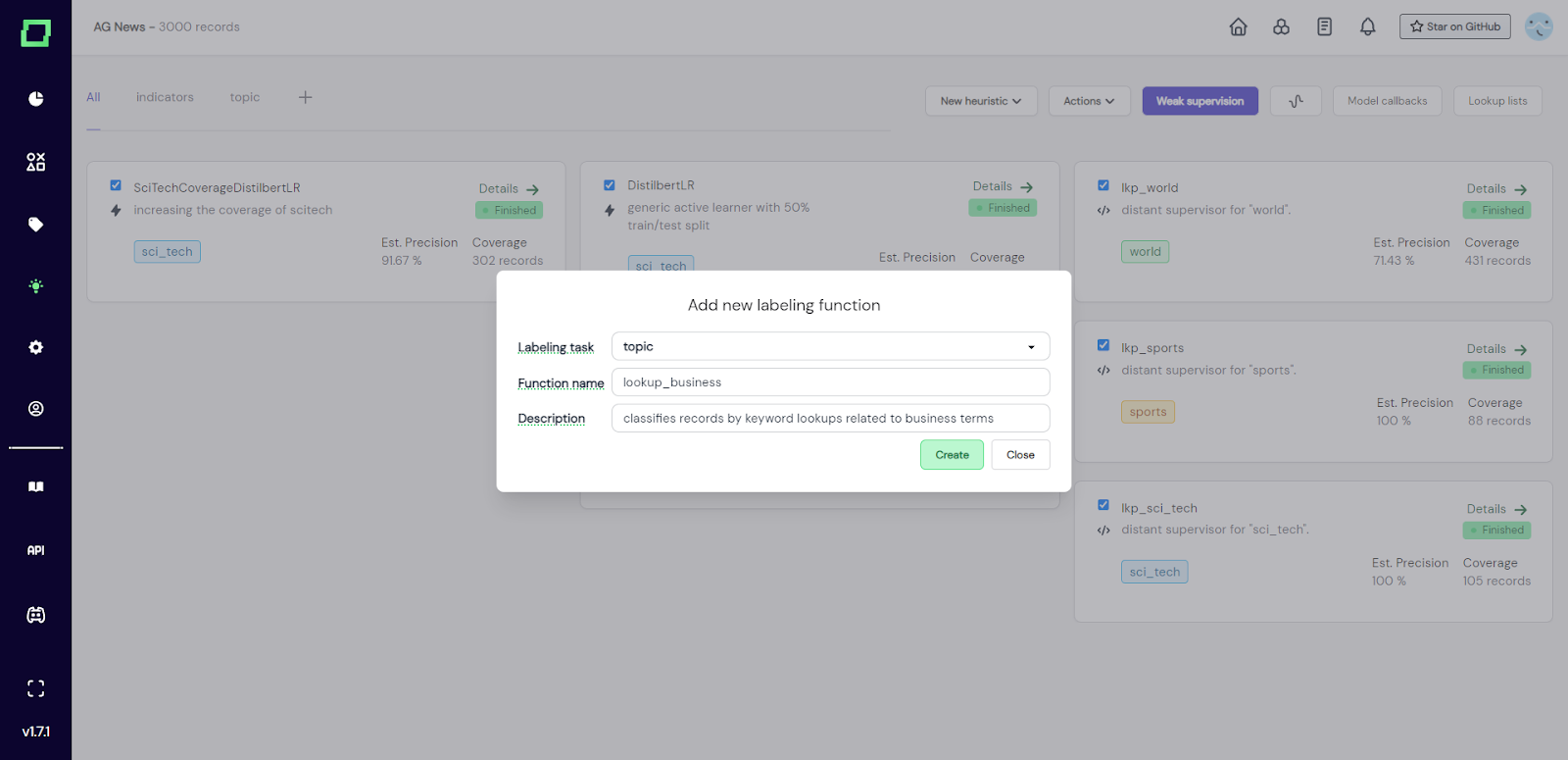
Fig. 2: The user selected the classification labeling task 'topic' for this labeling function, which will be a simple lookup function.
After creation, you will be redirected to the details page of that labeling function, which is also accessible from the heuristics overview. Here, you have the option to start your labeling function from scratch or to "search in bricks". [Bricks](https://github.com/code-kern-ai/bricks) is our open-source content library that collects a lot of standard NLP tasks, e.g. language detection, sentiment analysis, or profanity detection. If you are interested in integrating a bricks module, please look at the [bricks integration](/refinery/bricks-integration) page.
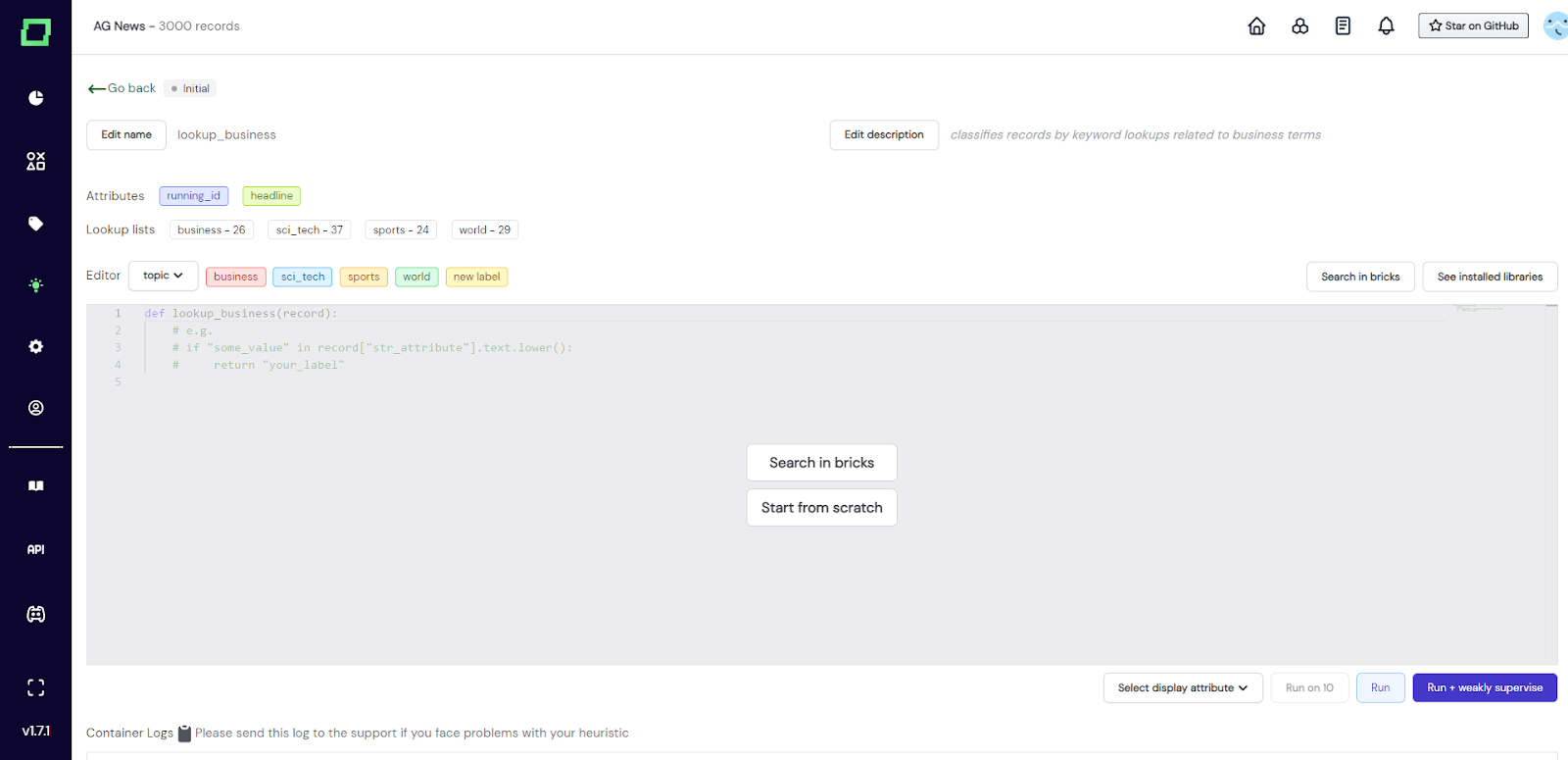
Fig. 3: Screenshot of the labeling function details page after initialization.
The next section will show you how to write a labeling function from scratch.
After creation, you will be redirected to the details page, which packs many features. For this section, we will be concentrating on the code editor. Before we start coding, let's talk about the signature of the labeling function: - The input `record` is a dictionary containing a single record with the attribute names as keys - as we tokenize _text_ attributes, they won't be a simple string, but rather a [spaCy Doc object](https://spacy.io/api/doc) (use `attribute.text` for the raw string) - the other attributes can be accessed directly, even _categorical_ attributes - The output will be different depending on the type of labeling task - a classification task must have a `return` statement that returns an existing label name as a string - an extraction task must have a `yield` statement that follows the pattern of `yield YOUR_LABEL, span.start, span.end` where `YOUR_LABEL` also is an existing label name as a string To write a labeling function, you just input your code into the code editor. Be aware that **auto-save is always on**! So if you plan to make big changes, either create a new labeling function or save the old code in a notepad.
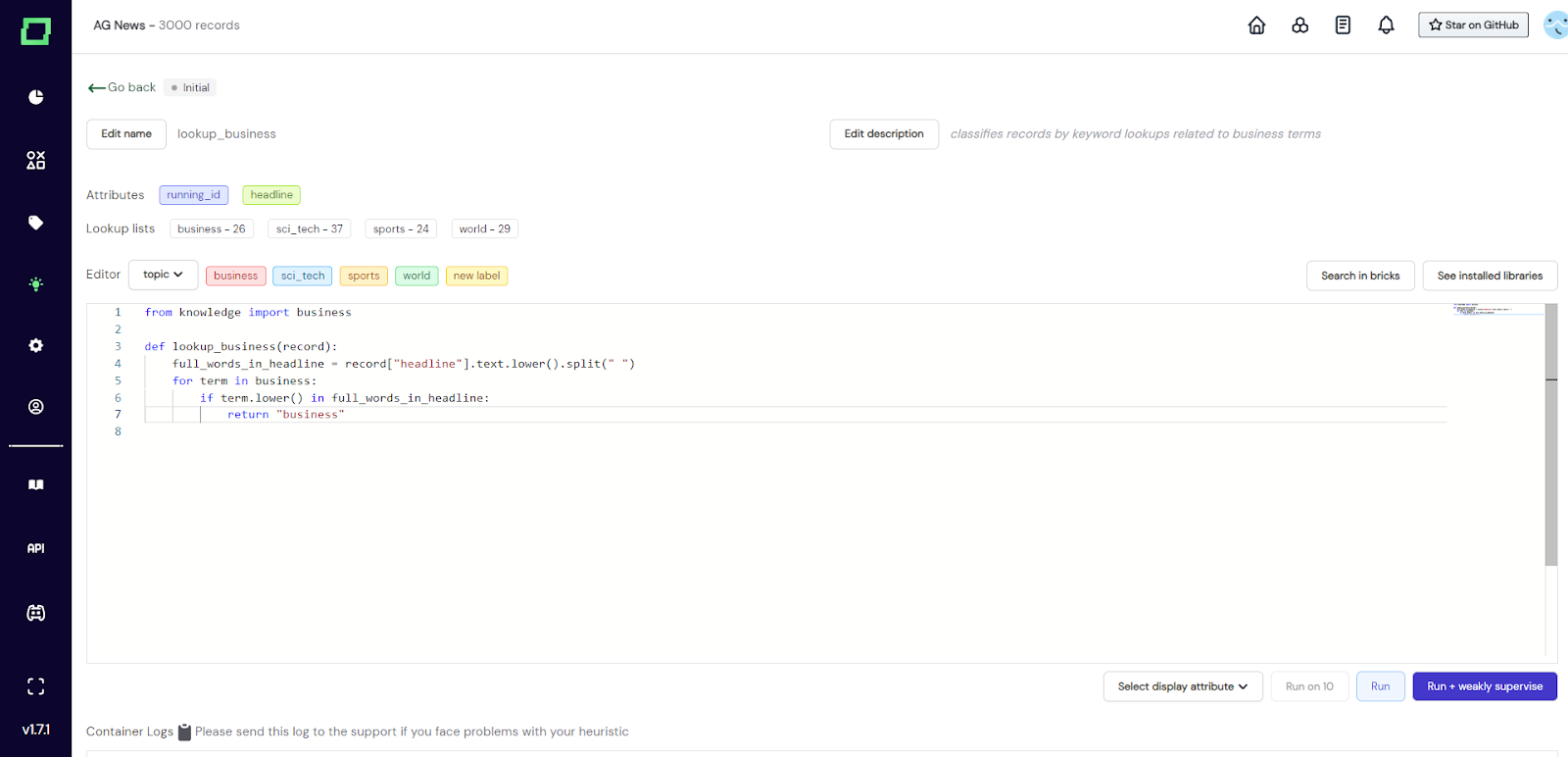
Fig. 4: Screenshot of the labeling function details page where the user finished writing the labeling function. It imports a lookup list called 'business' and looks for any of these terms in the headline attribute in order to return the label 'business'. This could be extended to look for a minimum threshold of matching terms to increase accuracy.
Above the code editor, there are some quality-of-life features: - _Attributes_: list of attributes that are available in your data. The colors of these buttons indicate the data type, hover over them for more details. They can also be pressed which copies the name to your clipboard - no more typos! - _Lookup lists_: list of available lookup lists and the number of terms that are in them. Click them to copy the whole import statement to the clipboard. - _Editor_: the dropdown right next to it defines the labeling task that the labeling function will be run on. Next to that are more colorful buttons that represent the available labels for that task. Click them to copy to the clipboard!
There are many [pre-installed useful libraries](https://github.com/code-kern-ai/refinery-lf-exec-env/blob/dev/requirements.txt), e.g. beautifulsoup4, nltk, spacy, and requests. You can check what libraries are installed by clicking the `See installed libraries` button on the top right corner just above the editor. You read that right, `requests` work within labeling functions! So you can also call outside APIs and save those predictions as a labeling function. Though, if you have a production model that you want to incorporate, we suggest using [model callbacks](/refinery/model-callbacks).
Our labeling function is still in the state `initial`, which means we cannot use it anywhere. To change that, the next chapter will cover running this function on your data.
After you've written your labeling function, you have three options to run it on your data: - _Run on 10_: Randomly sample 10 records from your data and run the selected function on it, then display the selected attribute of the record with the prediction of the labeling function. - _Run_: Run the function on all the records of your project. This will alter the state of your labeling function to `running` and after that (depending on the outcome) either to `finished` or `error`. - _Run + weakly supervise_: Just like _Run_ but triggers a weak supervision calculation with all heuristics selected directly afterward.
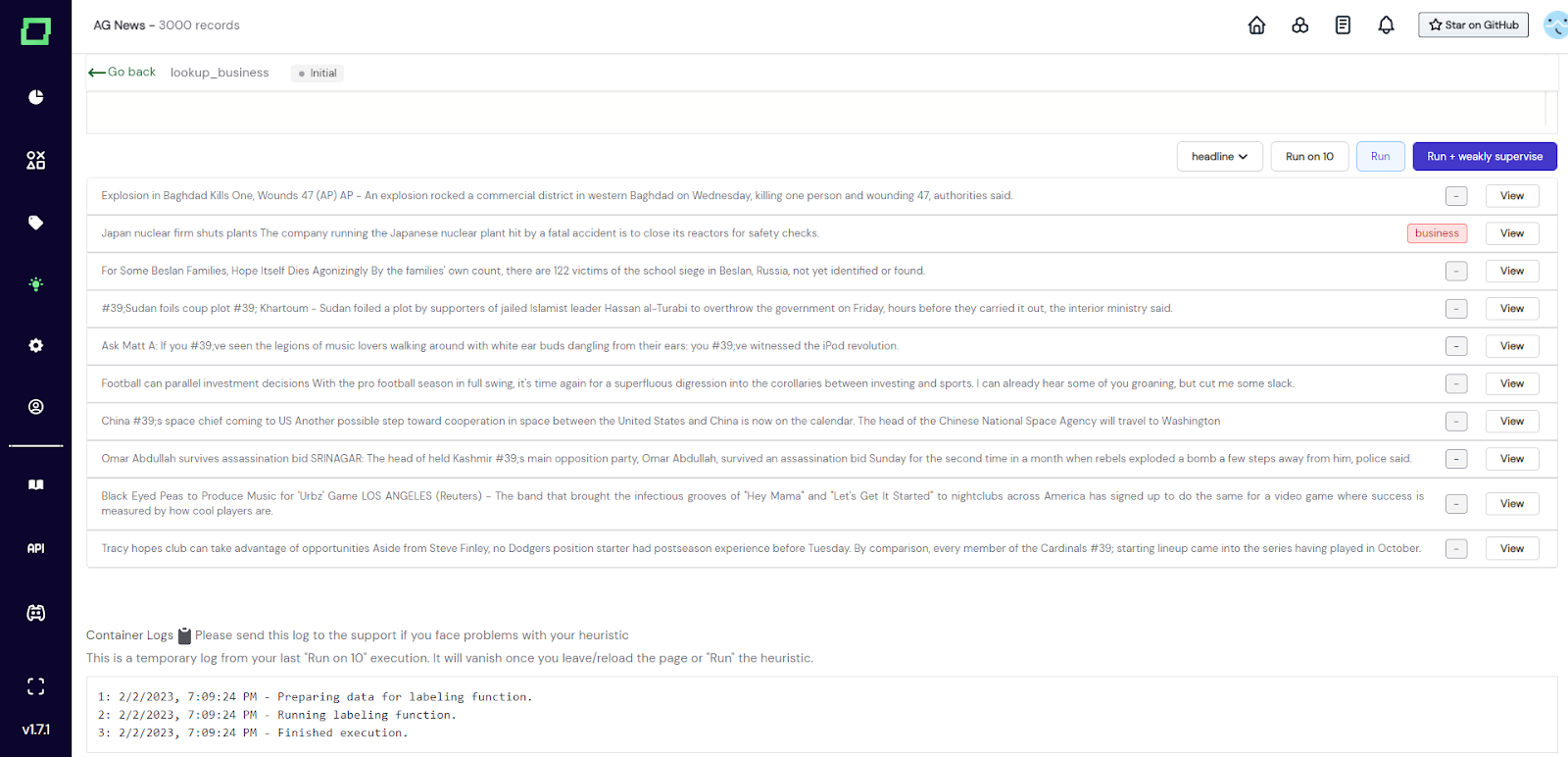
Fig. 5: Screenshot of the labeling function details page where the user tested his labeling function called lookup_business on 10 randomly selected records with the 'run on 10' feature. The user can now observe what records are predicted to be 'business'-related to validate the function.
We generally recommend first running your function a bunch of times with the "run on 10" feature, as you can observe edge cases, bugs, and other things while doing so.
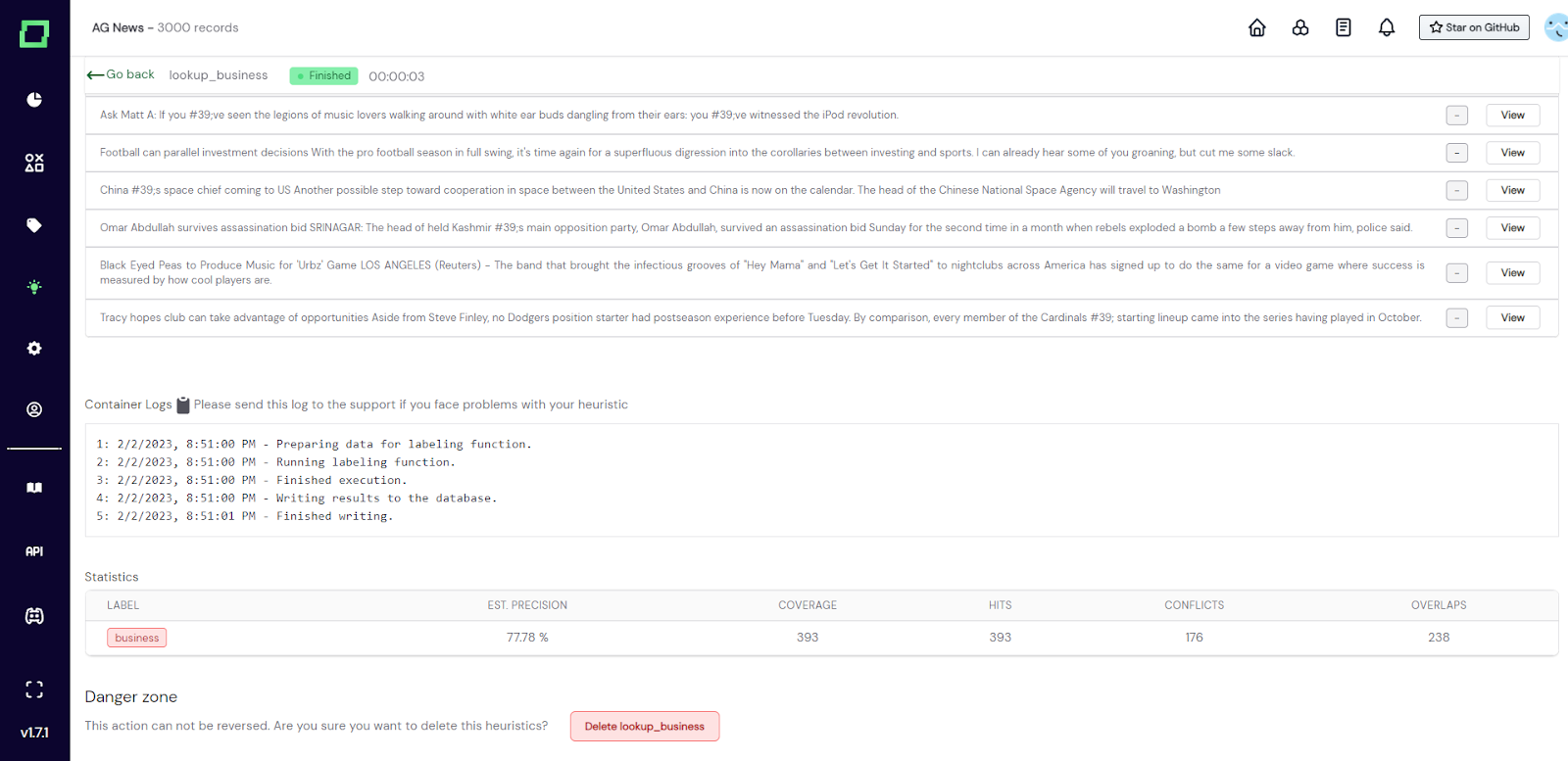
Fig. 6: Screenshot of the labeling function details page after running the labeling function on the full data (indicated by the state finished).
Your code is run as isolated containerized functions, so don't worry about breaking stuff. This is also the reason why we display "container logs" below the code editor. For all the information on these logs, go to the container logs section further down on this page.
Deleting a labeling function will remove all data associated with it, which includes the heuristic and all the predictions it has made. However, it does not reset the weak supervision predictions. So after deleting a labeling function that was included in the latest weak supervision run, the predictions are still included in the weak supervision labels. Consider re-calculating the weak supervision if that is an issue. In order to delete the labeling function simply scroll to the very bottom of the labeling function details, click on the delete button, and confirm the deletion in the appearing modal. Alternatively, you can delete any heuristic on the heuristics overview page by selecting it and going to Actions -> delete selected right next to the weak supervision button. Don't worry, there will still be a confirmation modal.
When you run (or run on 10) your labeling function, refinery executes it in a freshly spawned docker container, which you cannot inspect easily from outside as it shuts itself down after the calculation finishes. That is why we display the resulting logs of the execution on the labeling function details page. The logs of the latest full run are persisted in the database while the logs of the "run on 10" feature are only cached in the frontend, which means you will lose them as soon as you refresh or leave the page.
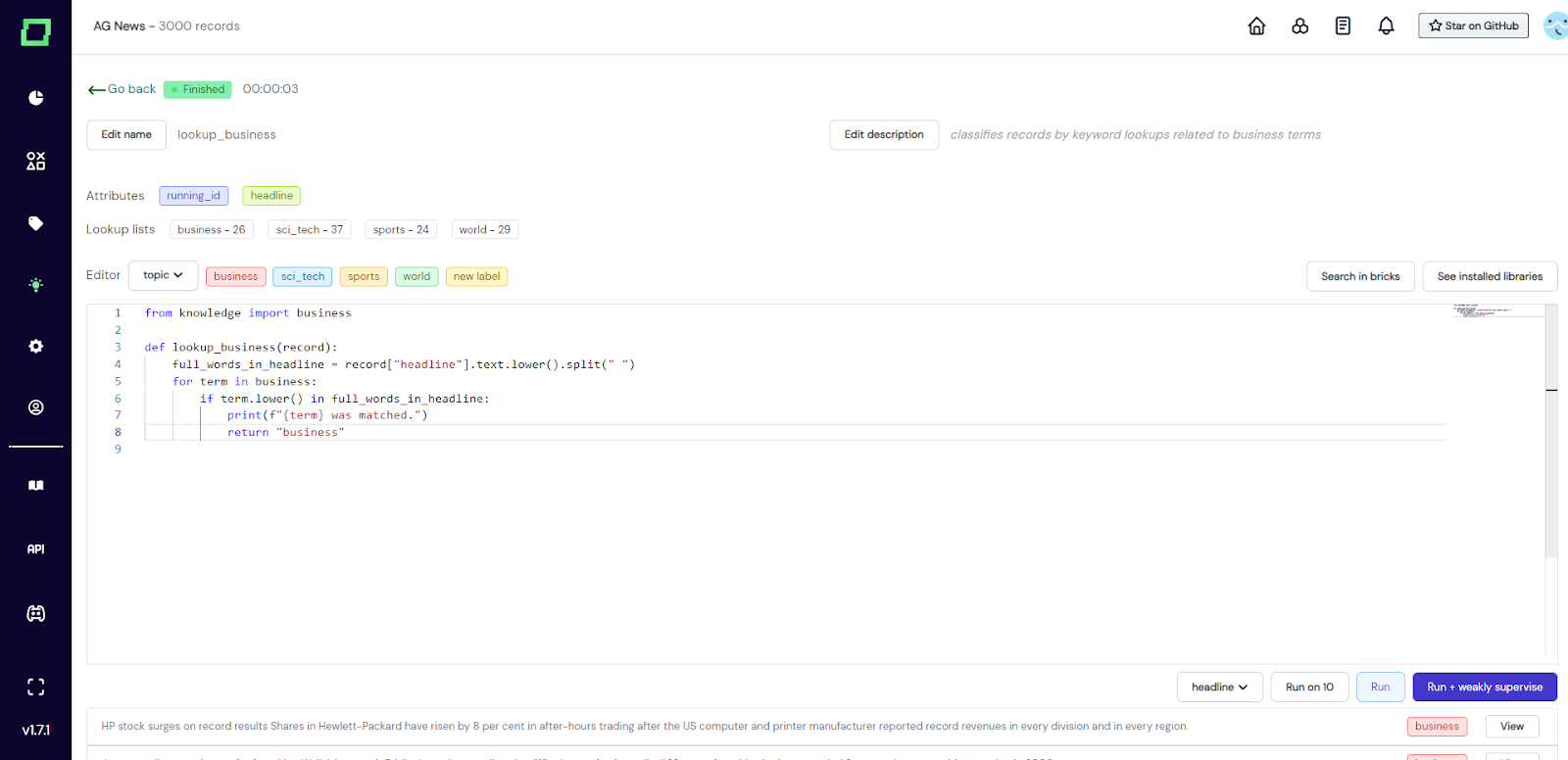
Fig. 7: Screenshot of the labeling function details page where the user added a print statement to the labeling function to observe which terms matched with his records.
Besides inspecting error messages, you can also use the container logs for debugging your labeling function using print statements.
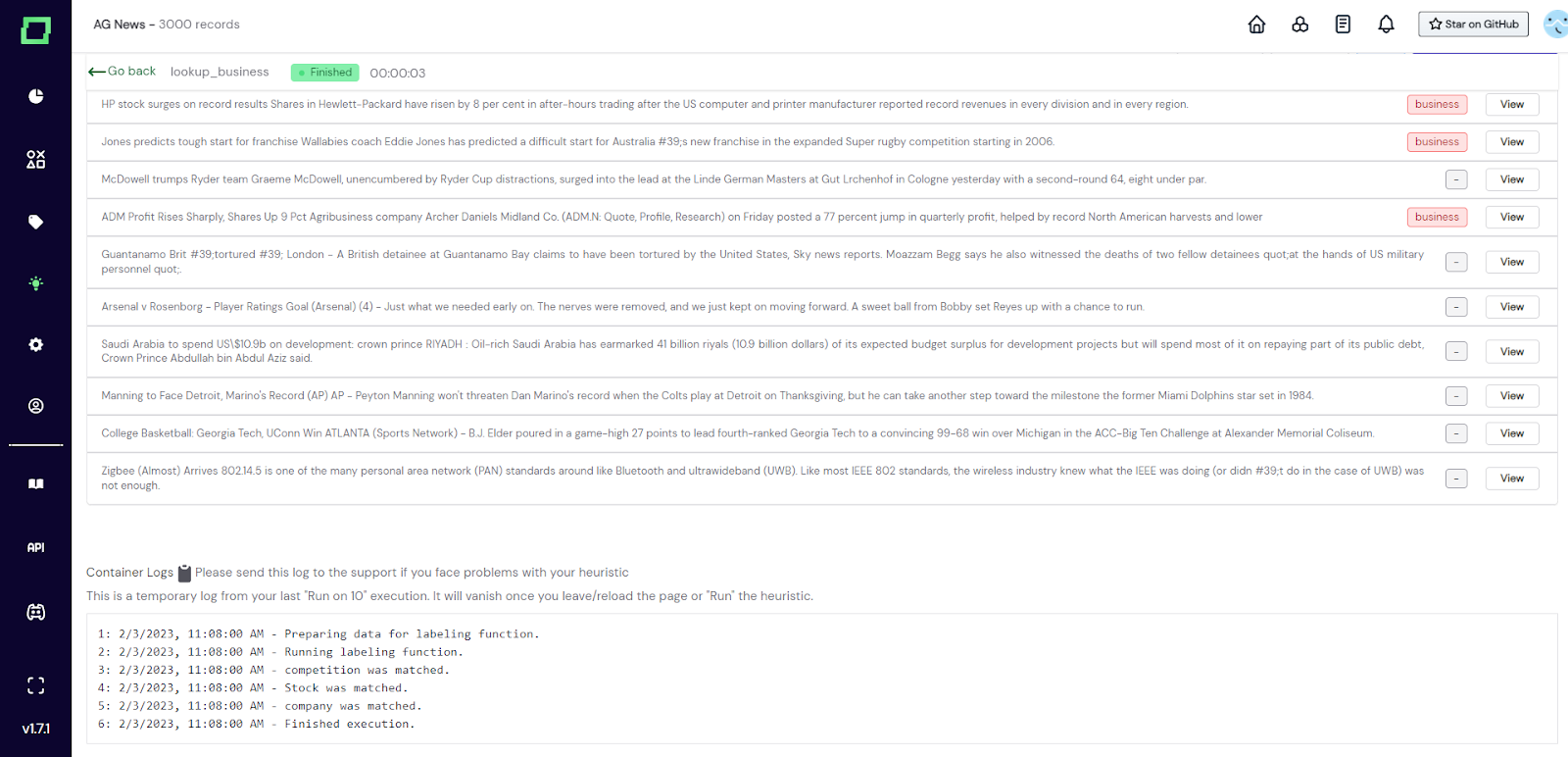
Fig. 8: Screenshot of the labeling function details page where the user ran his labeling function with the print statement (from Fig. 7) on 10 randomly sampled records. You can see the print results in the container logs.
After running your labeling function on the whole dataset, you get statistics describing its performance. The statistics should be used as an indicator of the quality of the labeling function. Make sure to understand those statistics and follow best practices in [evaluating heuristics](/refinery/evaluating-heuristics).
You'll quickly see that many of the functions you want to write are based on list expressions. But hey, you most certainly don't want to start maintaining a long list in your heuristic, right? That's why we've integrated automated lookup lists into our application. As you manually label spans for your extraction tasks, we collect and store these values in a lookup list for the given label.
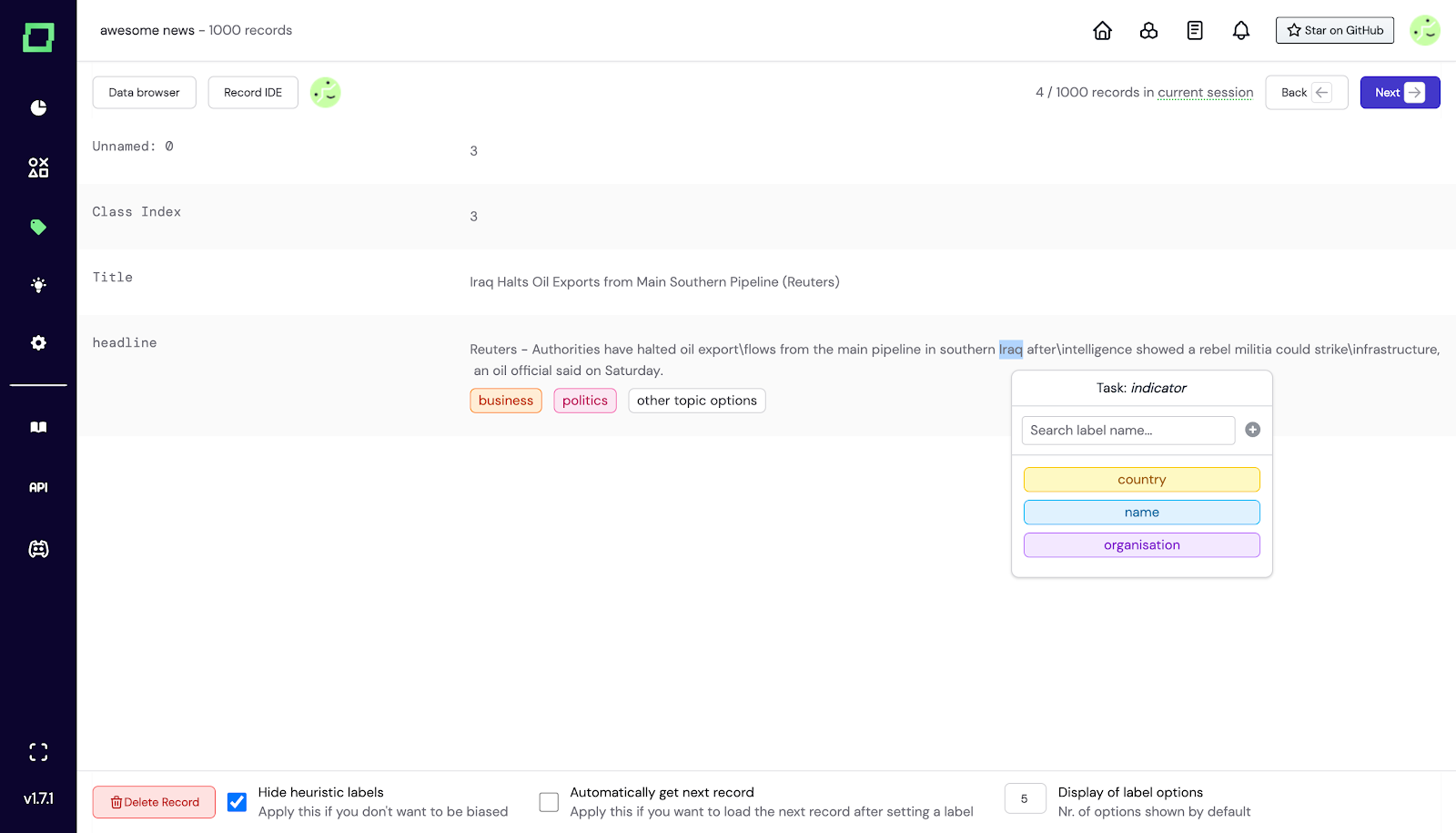
Fig. 9: Screenshot of the labeling suite where the user labels a span that is automatically added to a lookup list.
You can access them via the heuristic overview page when you click on "Lookup lists". You'll then find another overview page with the lookup lists.
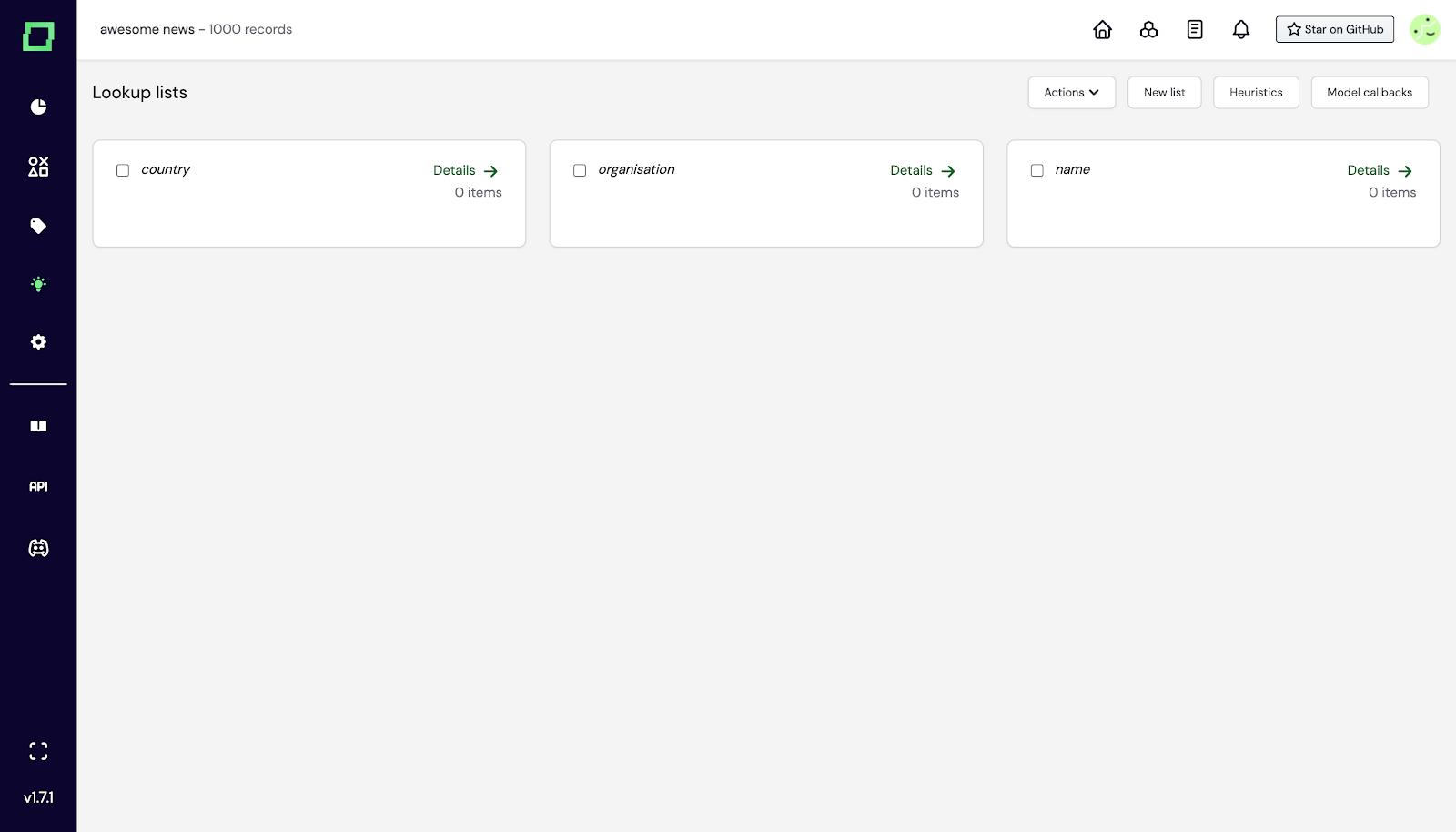
Fig. 10: Screenshot of the lookup lists overview accessed by going through the heuristic overview page.
If you click on "Details", you'll see the respective list and its terms. You can of course also create them fully manually, and add terms as you like. This is also helpful if you have a long list of regular expressions you want to check for your heuristics. You can also see the python variable for the lookup list, as in this example `country`.
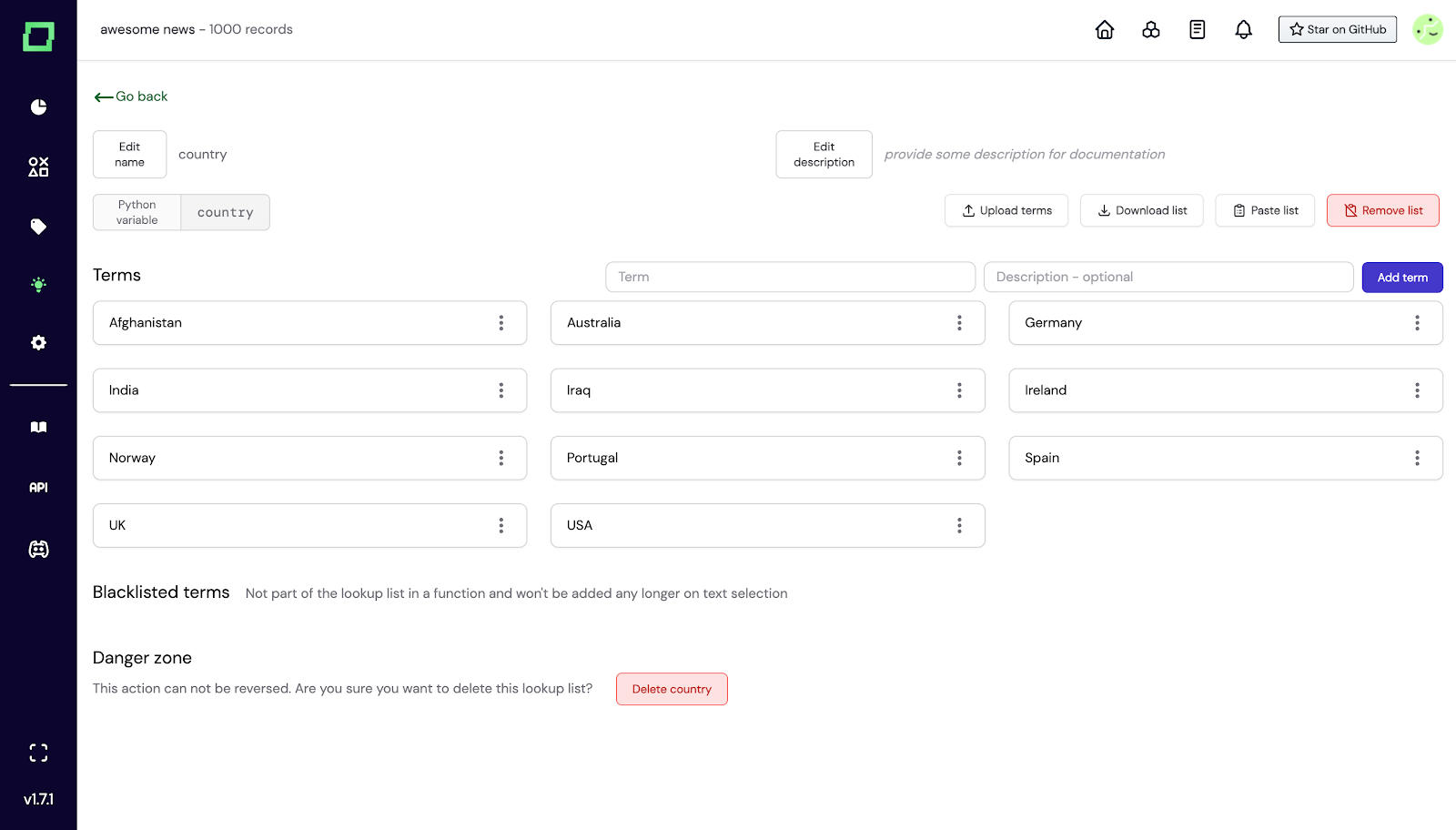
Fig. 11: Screenshot of the lookup list details view where one can manage the lookup list.
In your labeling function, you can then import it from the module `knowledge`, where we store your lookup lists. In this example, it would look as follows:
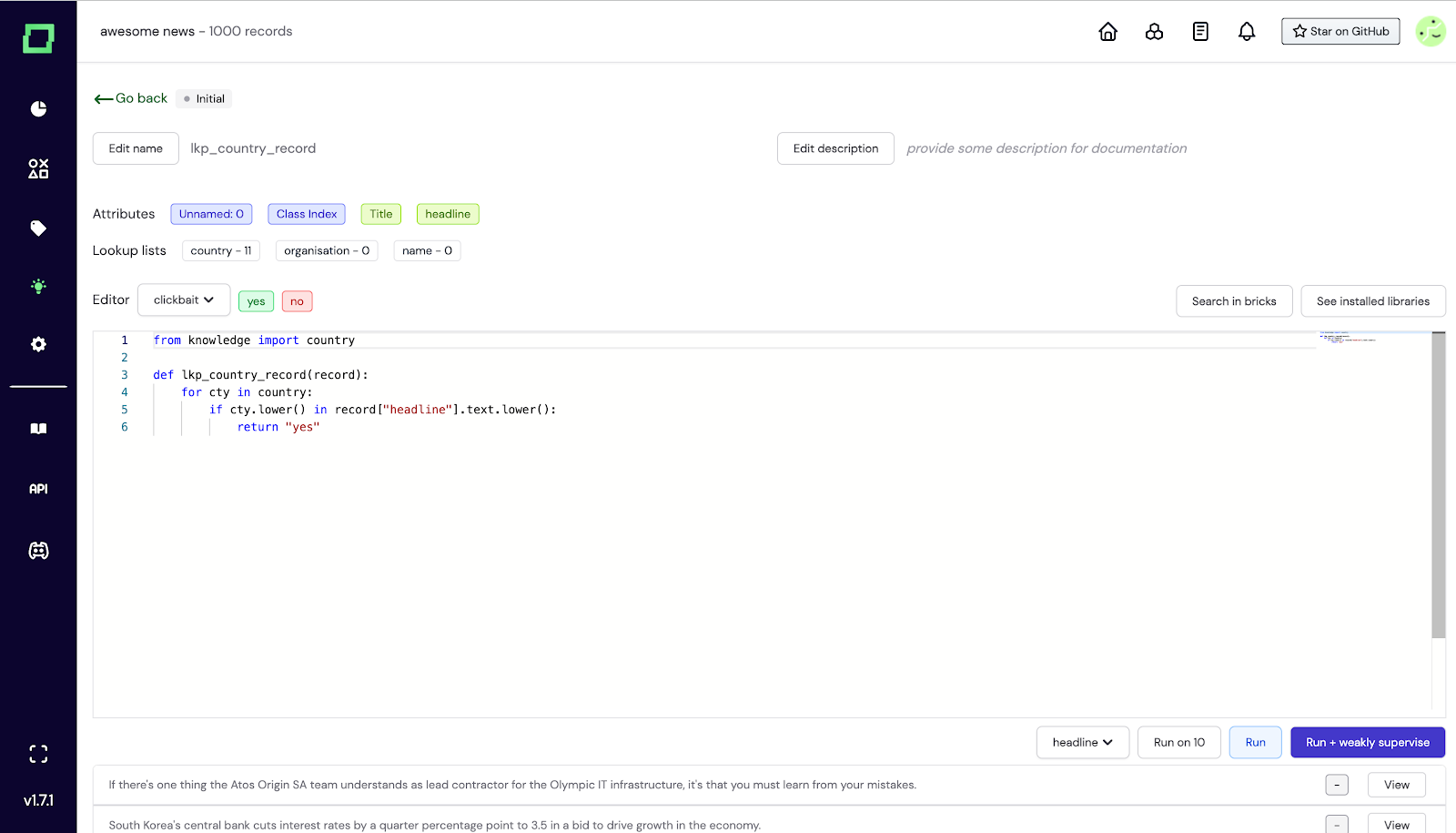
Fig. 12: Screenshot of a labeling function importing and utilizing a lookup list called 'country'.
You might already wonder what labeling functions look like for extraction tasks, as labels are on token-level. Essentially, they differ in two characteristics: - you use `yield` instead of `return`, as there can be multiple instances of a label in one text (e.g. multiple people) - you specify not only the label name but also the start index and end index of the span. An example that incorporates an existing knowledge base to find further examples of this label type looks as follows:
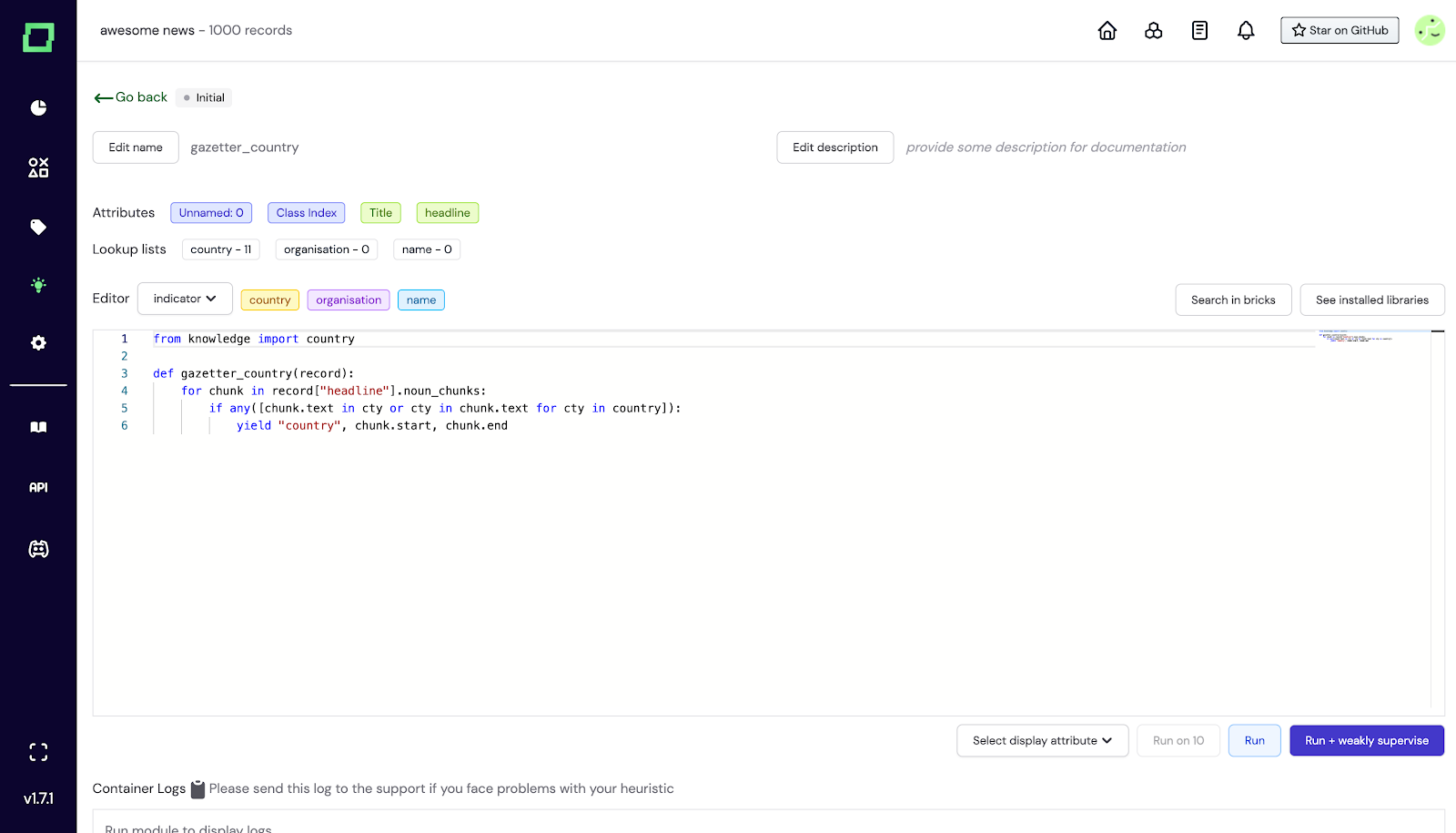
Fig. 13: Screenshot of a labeling function for an extraction task. This is also where the tokenization via `spaCy` comes in handy. You can access attributes such as `noun_chunks` from your attributes, which show you the very spans you want to label in many cases. Our [template functions repository](https://github.com/code-kern-ai/template-functions) contains some great examples of how to use that.
Active learners are few-shot learning models that leverage the powerful pre-trained language models that created the embeddings of your records. You can treat them as custom classification heads that are trained on your labeled reference data. They are different from the classical notion of an active learner in the sense that they do not query the user for data points to be labeled, but more on that in the best practices section. Many concepts in the UI are similar to the ones of the [labeling functions](/refinery/heuristics#labeling-functions).
To create a labeling function simply navigate to the heuristics page and select "Active learning" from the "New heuristic" button.
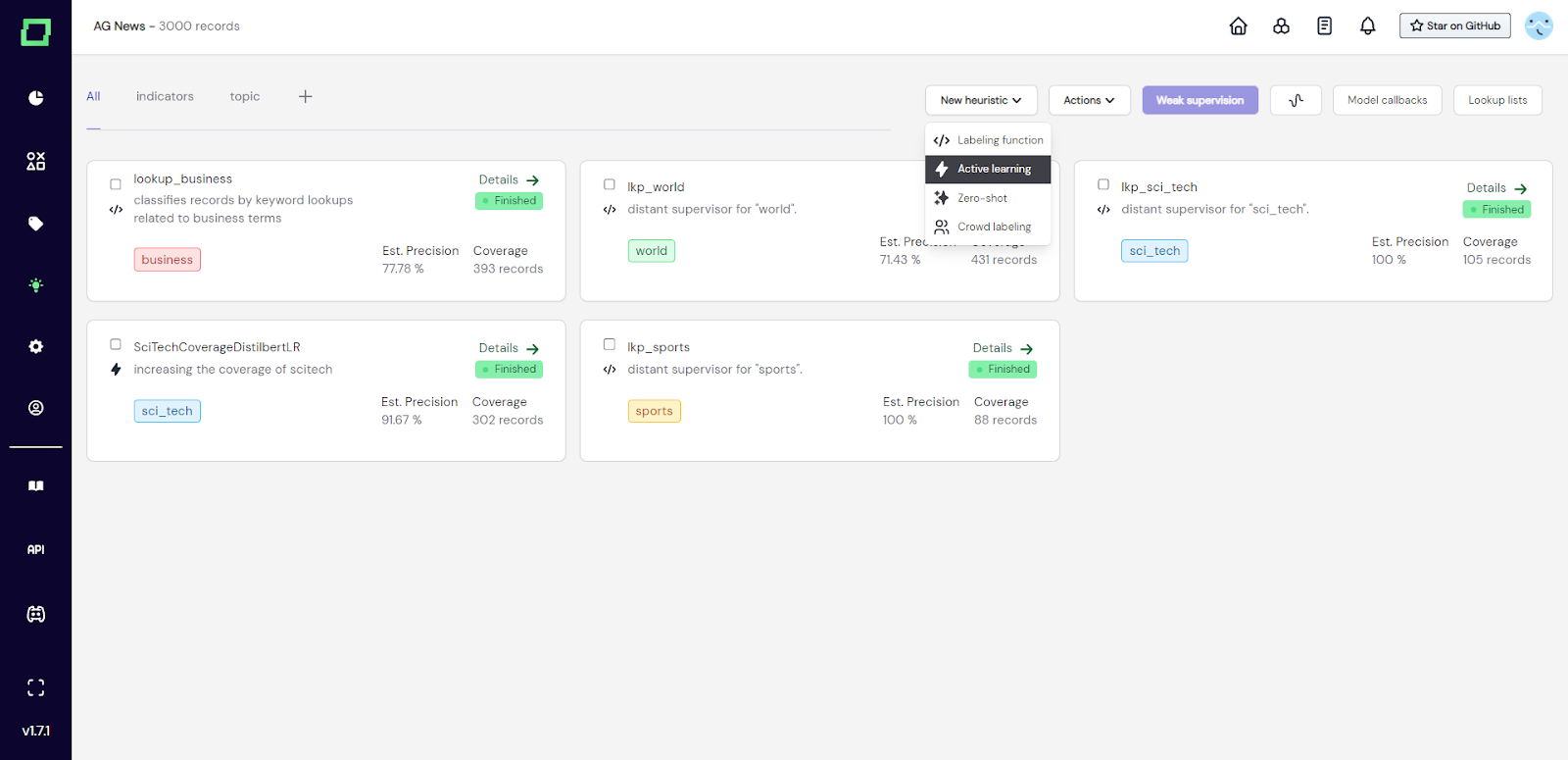
Fig. 1: Screenshot of the heuristics overview page where the user is about to create a new active learner.
After that, a modal will appear where you need to select the labeling task that this heuristic is for and give the active learner a unique name and an optional description. These selections are not finite and can be changed later, but they are used for the initial code generation, which will be a lot easier to use if you select the right things.
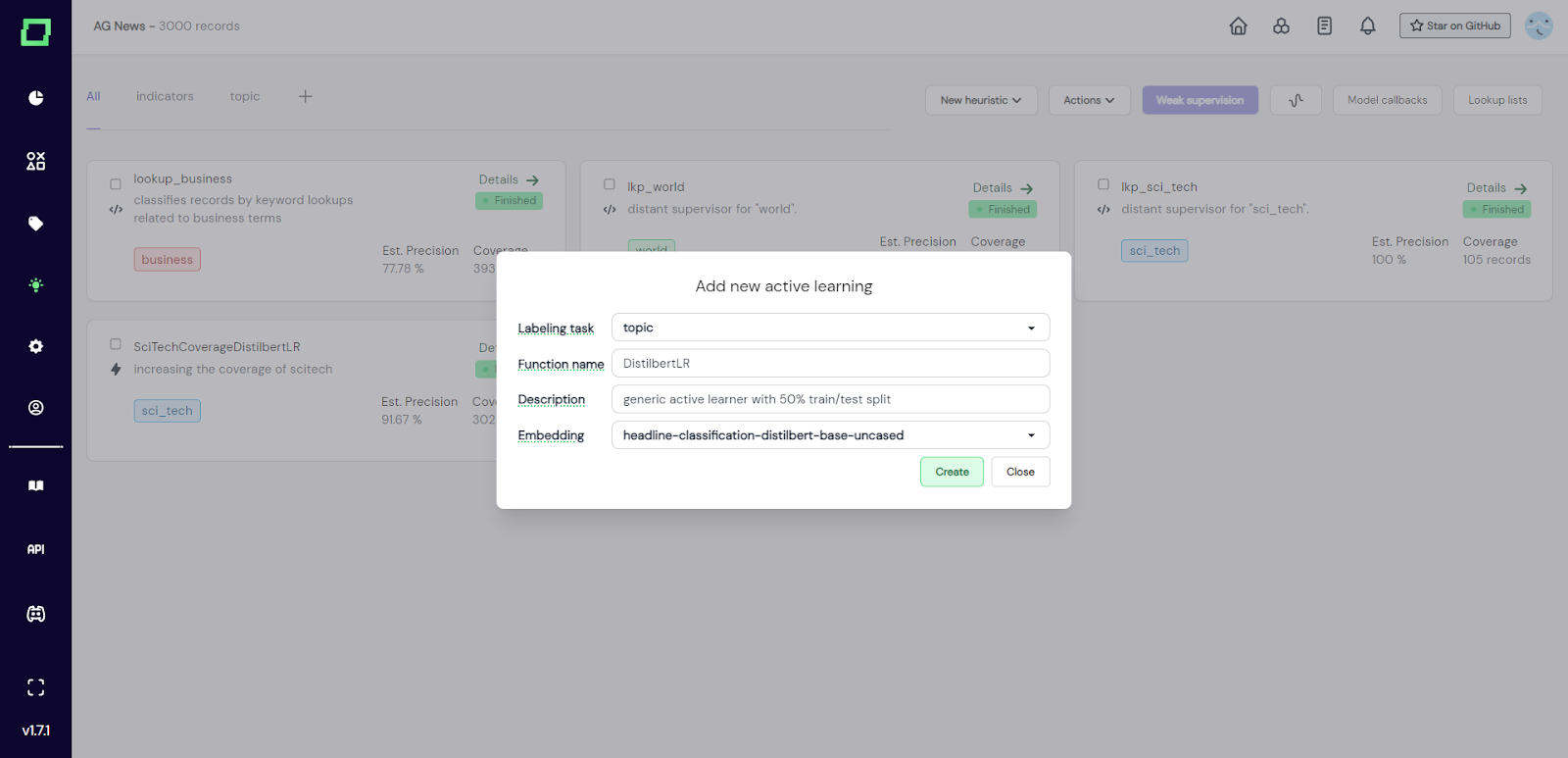
Fig. 2: Screenshot of the heuristics overview page where the user entered all the information required to create a new active learner.
After creation, you will be redirected to the details page (Fig. 3) of that active learner, which is also accessible from the heuristics overview. There is a lot of pre-filled code, which will be explained in the next section, where we write an active learner.
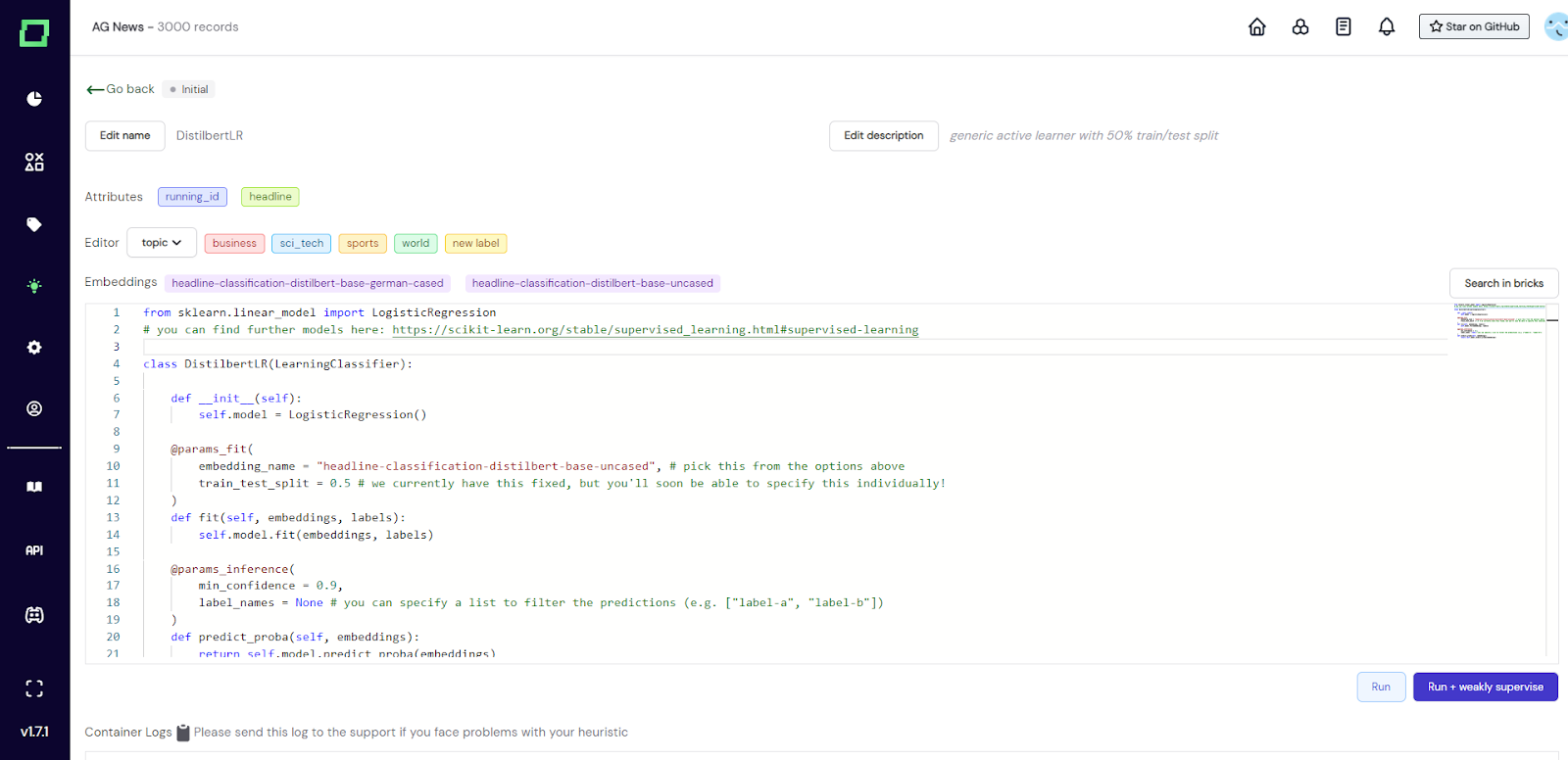
Fig. 3: Screenshot of the active learner details page after creation. The user has not modified anything, the code is entirely pre-filled.
When you create an active learner, there will be a lot of pre-filled code, which is a good baseline to work with, that you should keep as a structure and only exchange parts of. If you are not interested in the technical details and want to use active learners without touching code too much, please skip forward to the best practices and examples. Generally, you have to define a new class that carries the name of the active learner, which implements an abstract `LearningClassifier` (see Fig. 3). In order to use this active learner, you have to implement three abstract functions: - `__init__(self)`: initializes the `self.model` with an object that fulfills [sklearn estimator interface](https://scikit-learn.org/stable/developers/develop.html). **Can be modified to use the model of your choice.** - `fit(self, embeddings, labels)`: fits `self.model` to the embeddings and labels. **Should not be modified.** - `predict_proba(self, embeddings)`: makes predictions with `self.model` and returns the probabilities of those predictions. **Should not be modified.** If you are wondering why you should not modify two of those functions, it is because we put all the interchangeable parameters into the decorators (which begin with an "@"). In `@params_fit` you can specify the embedding name and train-test-split for the fitting process of your model. All valid embedding names can be seen above the code editor and the specified embedding will also be the one used for prediction. The train-test-split is currently fixed to a 50/50 split to ensure that there are enough records for thorough validation. In `@params_inference` you can specify the minimal confidence that your model should have in order to output the prediction it made and the label names which this active learner should make predictions for. One active learner can be trained on any amount of classes. If you specify `None`, then all the available labels are used. The default value for `min_confidence`is 0.9, which makes sure that your predictions are less noisy. If you find to suffer from very low coverage, consider changing this value, but the lower you set it, the more validation data should be available. Per default, we use the `LogisticRegression` from sklearn, which is common practice and we recommend trying it before switching to another model.
After you have finished writing your active learner (or just went with the default one), you can run it using either: - _Run:_ Fits the active learner on all manually labeled records from the training split that carry a label specified in `label_names`. After the fitting, it will make predictions for all records while obeying the specified `min_confidence`. Finally, it will calculate the statistics using the test records. This action will alter the state of your active learner first to _running_ and after that (depending on the outcome) either to _finished_ or _error_. - _Run + weakly supervise:_ Just like Run but triggers a weak supervision calculation with all heuristics selected directly afterward.
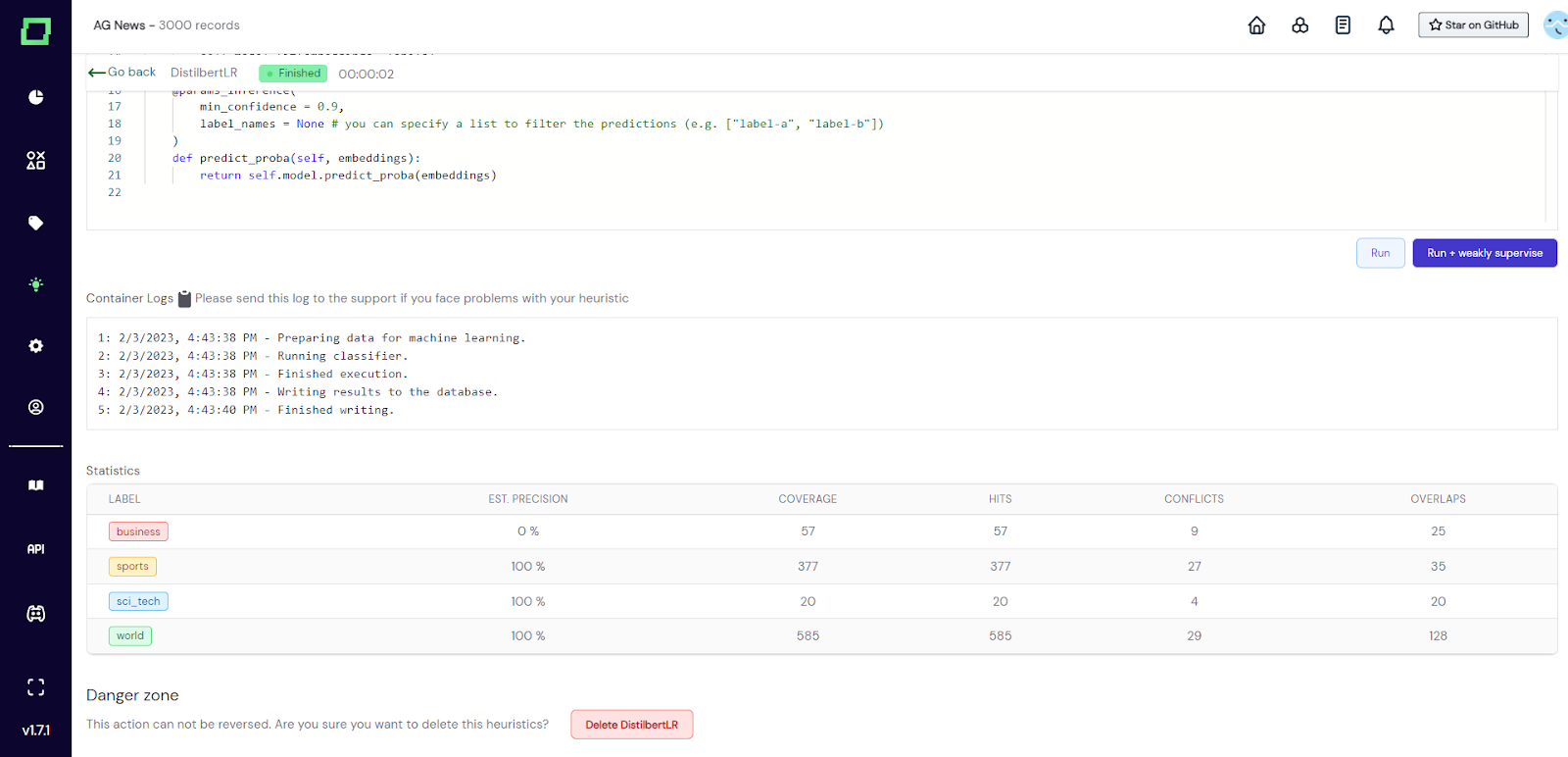
Fig. 4: Screenshot of the active learner details page after running it. The combination of extreme precision estimates and low coverages suggests that the user should try a lower confidence threshold.
For more details on the statistics, please visit the page about [evaluating heuristics](/refinery/evaluating-heuristics).
Deleting an active learner will remove all data associated with it, which includes the heuristic and all the predictions it has made. However, it does not reset the weak supervision predictions. So after deleting an active learner that was included in the latest weak supervision run, the predictions are still included in the weak supervision labels. Consider re-calculating the weak supervision if that is an issue. In order to delete the active learner simply scroll to the very bottom of the active learner details, click on the delete button, and confirm the deletion in the appearing modal. Alternatively, you can delete any heuristic on the heuristics overview page by selecting it and going to "Actions" -> "delete selected" right next to the weak supervision button. Don't worry, there will still be a confirmation modal.
After running your active learner on the whole dataset, you get statistics describing its performance. The statistics should be used as an indicator of the quality of the active learner. Make sure to understand those statistics and follow best practices in [evaluating heuristics](/refinery/evaluating-heuristics).
You can use [Scikit-Learn](https://scikit-learn.org/stable/) inside the editor as you like, e.g. to extend your model with grid search. The `self.model` is any model that fits the [Scikit-Learn estimator interface](https://scikit-learn.org/stable/developers/develop.html), i.e. you can also write code like this:
from sklearn.model_selection import GridSearchCV
from sklearn.tree import DecisionTreeClassifier
class ActiveDecisionTree(LearningClassifier):
def __init__(self):
params = {
"criterion": ["gini", "entropy"],
"max_depth": [5, 10, None]
}
self.model = GridSearchCV(DecisionTreeClassifier(), params, cv=3)
# ...
As with any other heuristic, your function will automatically and continuously be [evaluated](/refinery/evaluating-heuristics) against the data you label manually.
One way to improve the precision of your heuristics is to label more data (also, there typically is a steep learning curve, in the beginning, so make sure to label at least some records). Another way is to increase the `min_confidence` threshold of the `@params_inference` decorator. Generally, precision beats recall in active learners for weak supervision, so it is perfectly fine to choose higher values for the minimum confidence.
We're using our own library [sequencelearn](https://github.com/code-kern-ai/sequence-learn) to enable a Scikit-Learn-like API for programming span predictors, which you can also use [outside of our application](https://github.com/code-kern-ai/sequence-learn/blob/main/tutorials/Learning%20to%20predict%20named%20entities.ipynb). Other than importing a different library, the logic works analog to active learning classifiers.
This feature is only available in the [managed version](/refinery/managed-version).
When you have some annotation budget available or just know some colleagues who have a little less domain expertise than required, you can still incorporate their knowledge as a crowd labeling heuristic. Before starting with this, you should be aware of the implications of this design choice. As this is only a heuristic, you will not be able to use these labels individually, but only in an aggregated form by incorporating them in the [weak supervision](/refinery/weak-supervision) process.
Before you can use the crowd labeling heuristic, you should first create static data slices that the annotators will work on. If you want to randomly distribute work, we suggest slicing your data according to the primary key (e.g. `running_id`), shuffling it randomly, and saving that to a slice. You should also have at least one user with the annotator role assigned to your workspace. If that is not the case, get in contact with us and we will set it up together with you.
As with every heuristic, we start by visiting the heuristics page and selecting "crowd labeling" in the dropdown "new heuristic".
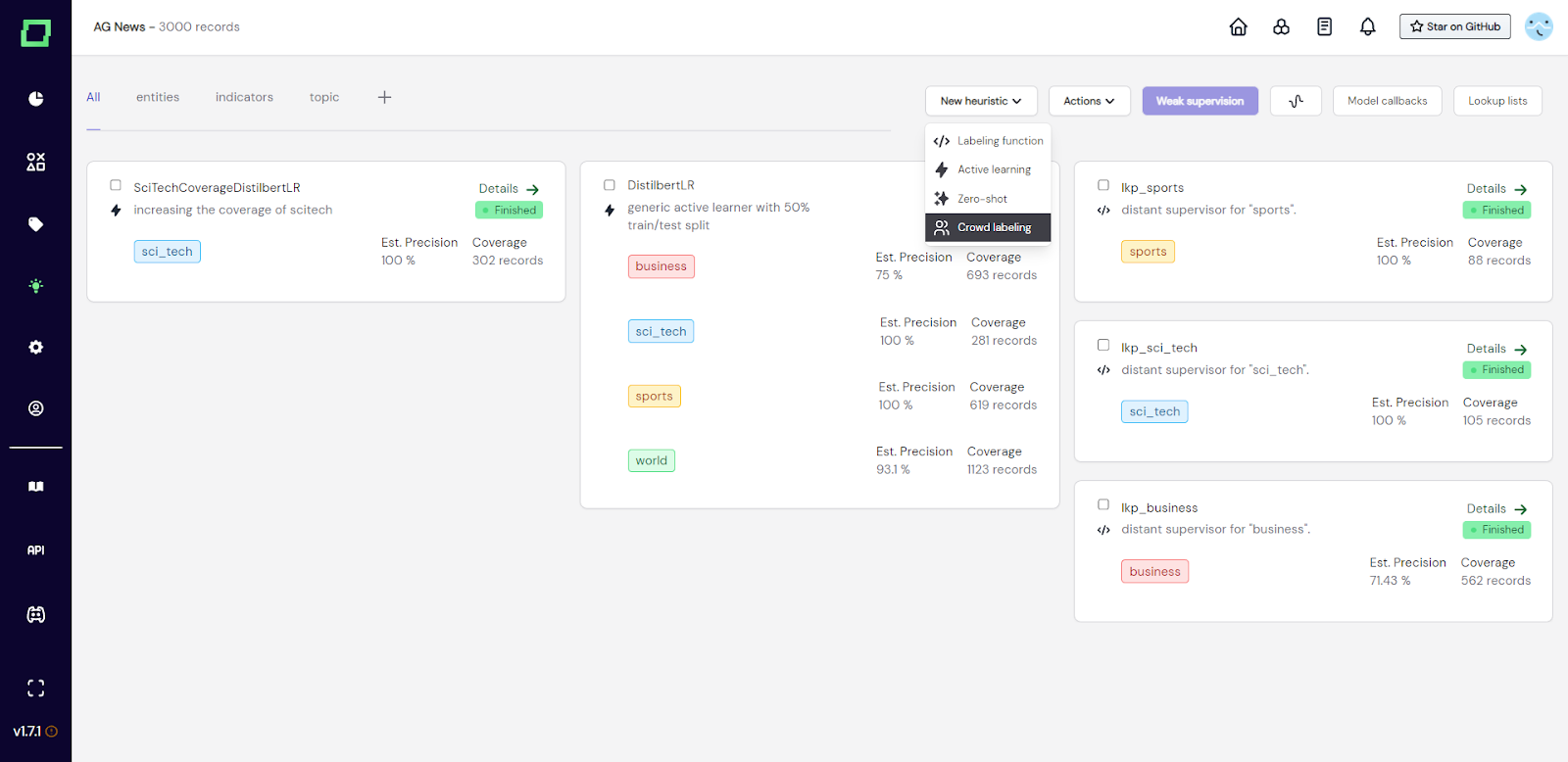
Fig. 1: Screenshot of the heuristics overview page. The user is adding a new crowd labeling heuristic. This heuristic also requires the user to specify the labeling task, a name, and a description. This can also still be updated in the next step.
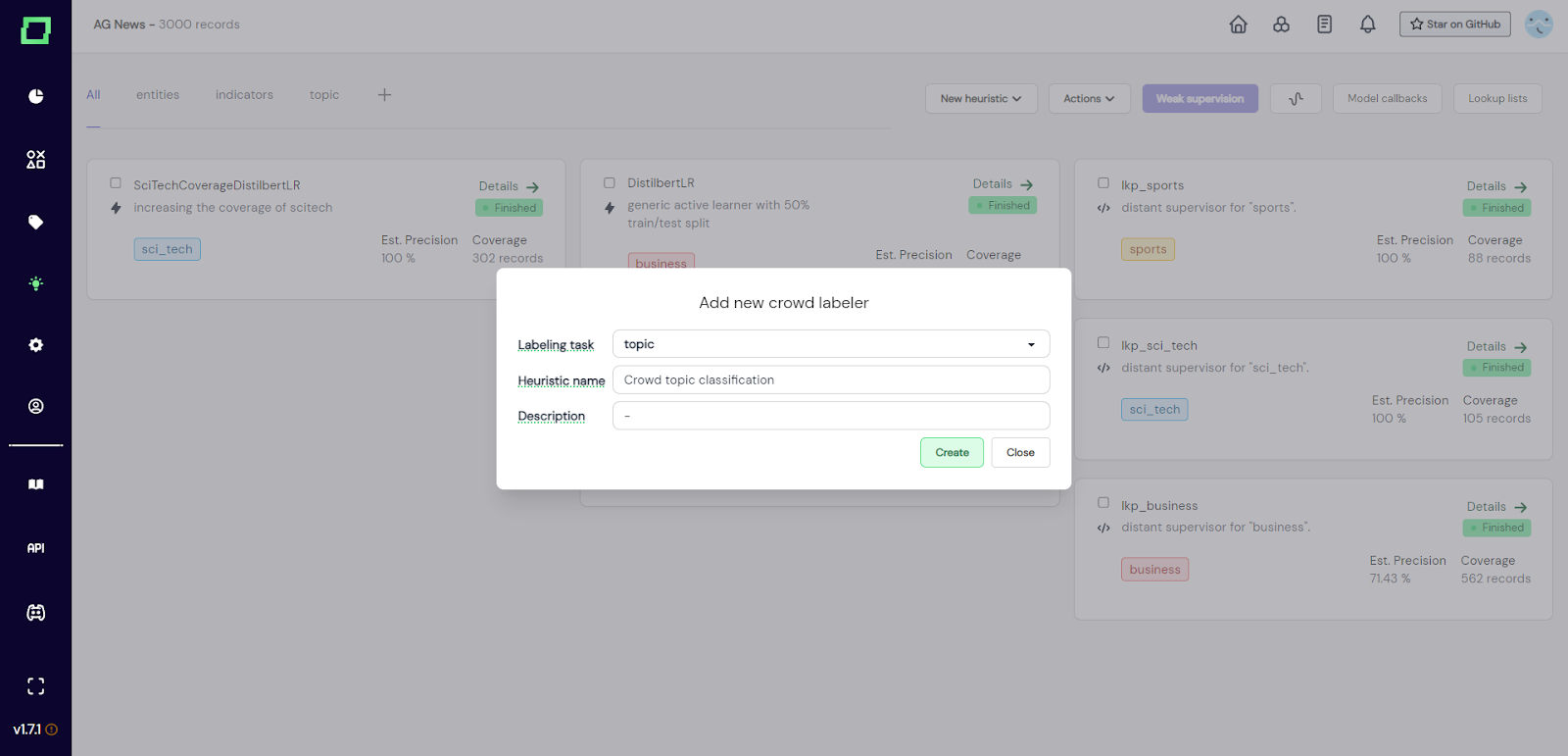
Fig. 2: Screenshot of the modal that appears after selecting to add a new crowd labeling heuristic. After you entered everything and clicked on "create", you will be redirected to the details page of that crowd heuristic. As you can see in Fig. 3, the state is still `initial` and there is no annotator or slice selected. You can now fill in the required information, so assign one annotator account to one static data slice. After that, you can generate a link that can be sent out to the annotator.
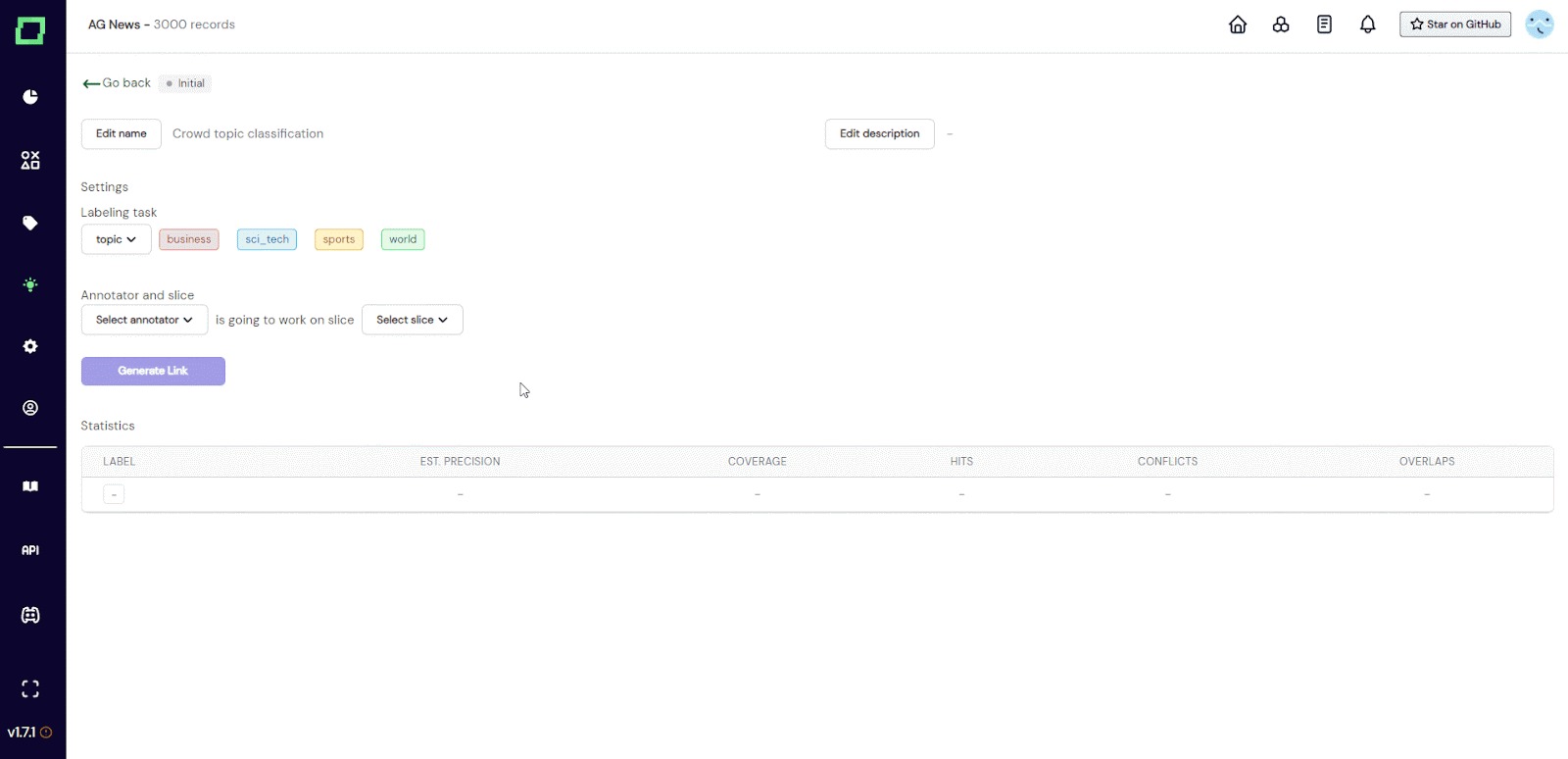
Fig. 3: GIF of the user filling in the required information for the crowd heuristic shortly after creation.
Before sending out any links, you should be sure that you selected the right labeling task, annotator, and data slice. As soon as one crowd label is assigned to this heuristic, these options will be locked and cannot be changed anymore. Once you made sure everything is correct, you can just send the link out to the person that has access to the selected annotator account (e.g. send the link to `moritz.feuerpfeil@onetask.ai` in the example of Fig. 3).
Want to revoke access to this heuristic but already sent out the link? Selecting the lock icon below the link will "lock" the annotator out of this heuristic, which means they won't be able to annotate or view the data anymore. This way you can revoke access to the data without deleting the heuristic.
As you can see in Fig. 4, as soon as the off-screen annotator set the first label, the settings get locked. The progress bar indicated the progress of the annotator on the selected slice. Statics are collected and live updated without refreshing the page. Read more on [evaluating heuristics](/refinery/evaluating-heuristics) if you are curious about the meaning of the statistics.
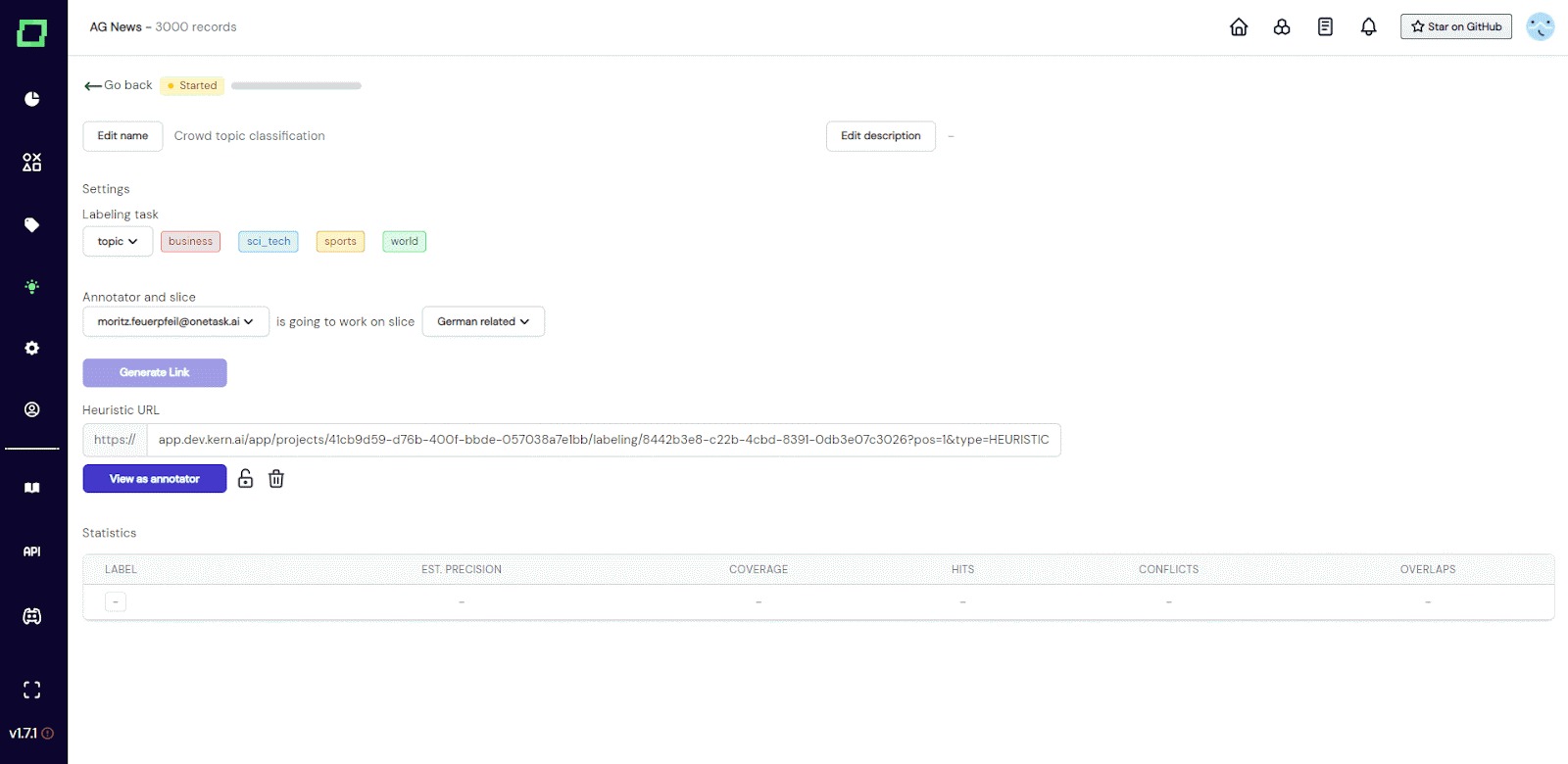
Fig. 4: GIF of the crowd heuristic details page while the annotator is labeling off-screen. Live updates show the engineer how far the annotator progressed and with what accuracy compared to the manual reference labels.
Derzeit gibt es auf der Seite mit den heuristischen Crowd-Details keine Schaltfläche zum Löschen. Das heißt, die einzige Möglichkeit, diese Heuristik zu löschen, besteht darin, sie auf der Heuristik-Übersichtsseite auszuwählen und auf „Aktionen“ -> „Ausgewählte löschen“ zu klicken.