
See how you can export the data in your refinery project
There are two ways of exporting your data that are useful for different purposes. There is the option to download your records and there is the option to **create a project snapshot**. Both are accessible on the settings page.
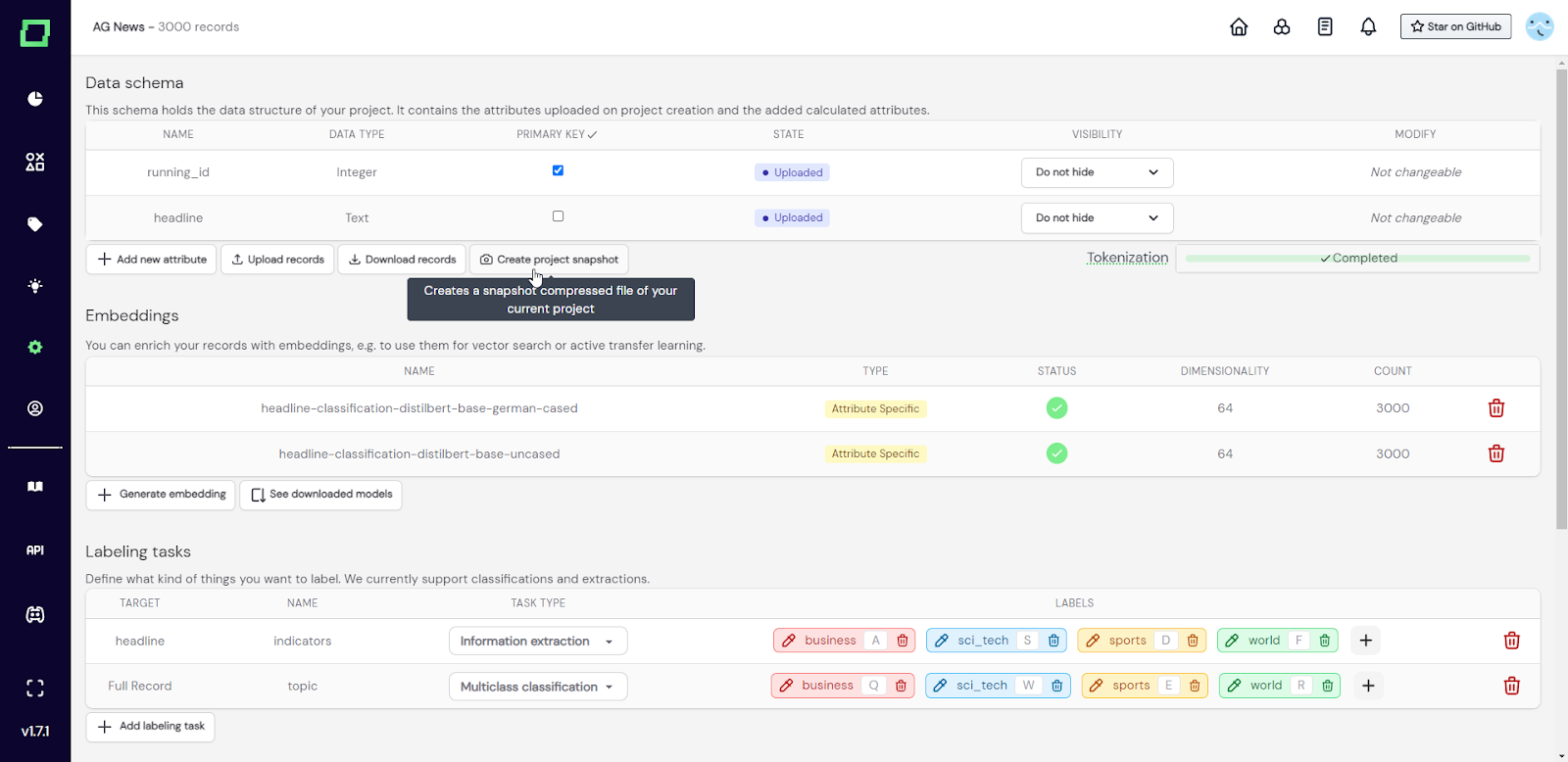
Fig. 1: Screenshot of the settings page where the user is about to create a project snapshot.
This option will be the most commonly chosen one when it comes to exporting your data in order to use it outside of refinery. Once you select to download your record, a modal will appear that lets you fully customize the data you want to export (see Fig. 2).
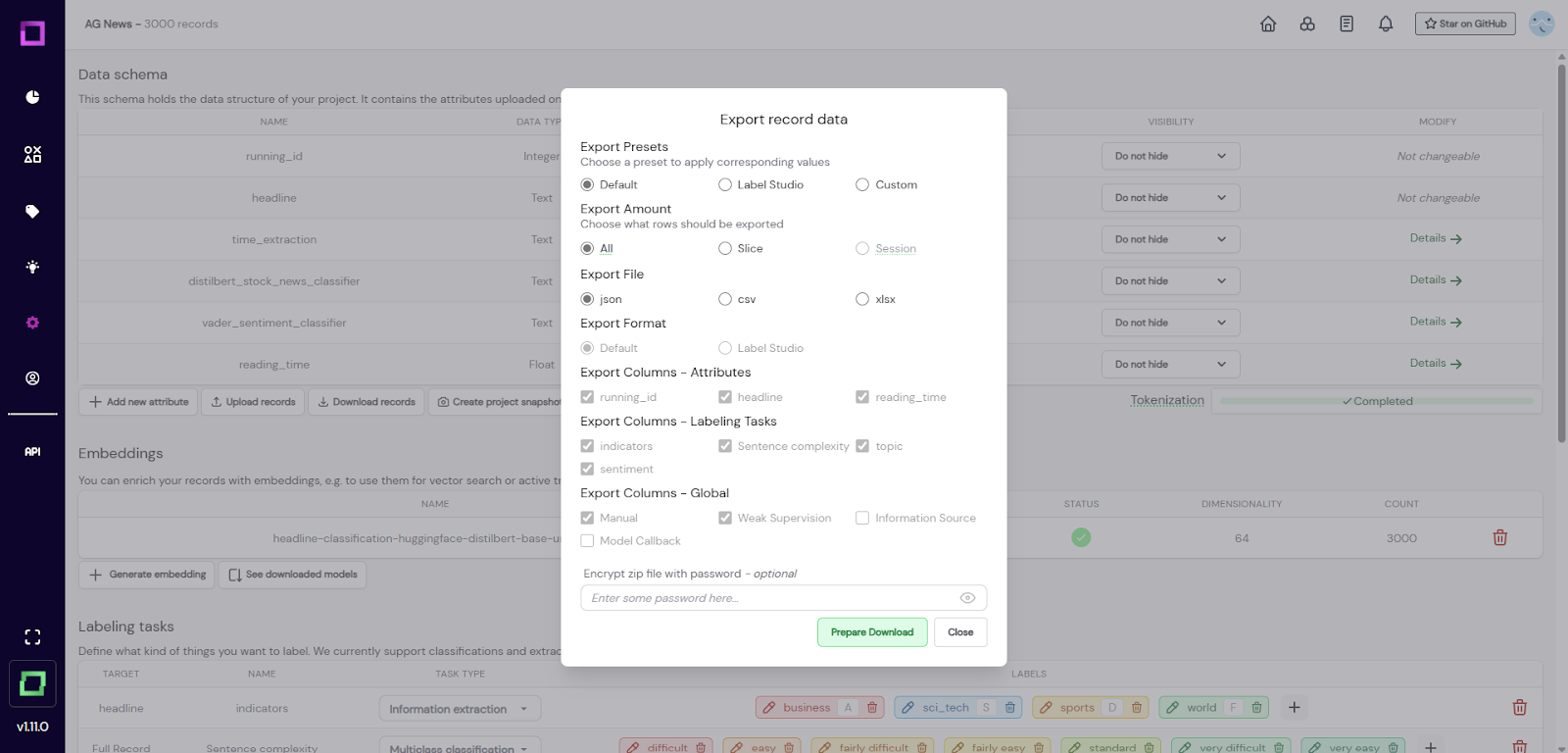
Fig. 2: Modal that appears after clicking on the 'Download records' button."
The default settings are a great starting point, but the "custom" option on the top right makes everything selectable to your needs. There is also the option to export your data in the Label Studio format, which also comes with custom HTML code to get a refinery-like UI in Label Studio. If you want to protect your file from unauthorized access, you can specify a password which will protect the resulting zip file. This way, you would have to enter the password when extracting the data or when importing the data back into refinery. Always press the "prepare download" prior to downloading to get the latest data.
One of the most useful options is the "export amount" as you can select to export only a certain data slice. A few scenarios where this can help you in your data development process could be to e.g. only export labeled records, export training and testing data separately, or only export data that is above a certain weak supervision confidence threshold. You don't have to decide that at exporting time, though. You can filter the data according to your needs afterward, so let's take a look at the exported file to better understand the schema:
[
{
"headline": "$200 Laptops Break a Business Model",
"running_id": "1479",
"__clickbait__MANUAL": null,
"__clickbait__WEAK_SUPERVISION": "yes",
"__clickbait__WEAK_SUPERVISION__confidence": "0.4685",
"headline__entities__MANUAL": [
"O",
"O",
"O",
"O",
"O",
"O",
"O"
],
"headline__entities__WEAK_SUPERVISION": [
"MONEY",
"MONEY",
"O",
"O",
"O",
"O",
"O"
],
"headline__entities__WEAK_SUPERVISION__confidence": [
0.83,
0.83,
0.0,
0.0,
0.0,
0.0,
0.0
]
}
]
`headline` and `running_id` are the attributes of our records, they were given in the initial data import. Everything that starts with a double underscore `__` is a reference to a full attribute _classification_ labeling task, that comes with three separate entries: - `MANUAL`: the manually set label for this task. - `WEAK_SUPERVISION`: the weakly supervised label for this task. - `WEAK_SUPERVISION_CONFIDENCE`: the confidence for the weakly supervised label. That means the JSON key `__clickbait__MANUAL` contains the manual label for the full record classification labeling task `clickbait` as a value. As refinery also offers _information extraction_ labeling tasks or classification tasks that are defined on a single attribute and not on the whole record, you can also find other entries in the JSON, which follow the same pattern with three separate entries, but this time they are prefaced with the name of the attribute that the labeling task is defined on. Therefore, `headline__entities__MANUAL` refers to the manual label for the labeling task `entities` that is defined on the attribute `headline`. The labeling task type will define whether the entry is a list (extraction) or a single value (classification). If you need a refresher on the different types of labeling tasks, please have a look at the section [labeling tasks](/refinery/labeling-tasks).
This data export option is mainly designed to be a backup option. If you want to export your whole refinery project that can be loaded back into refinery at a later point, then you should create a project snapshot.
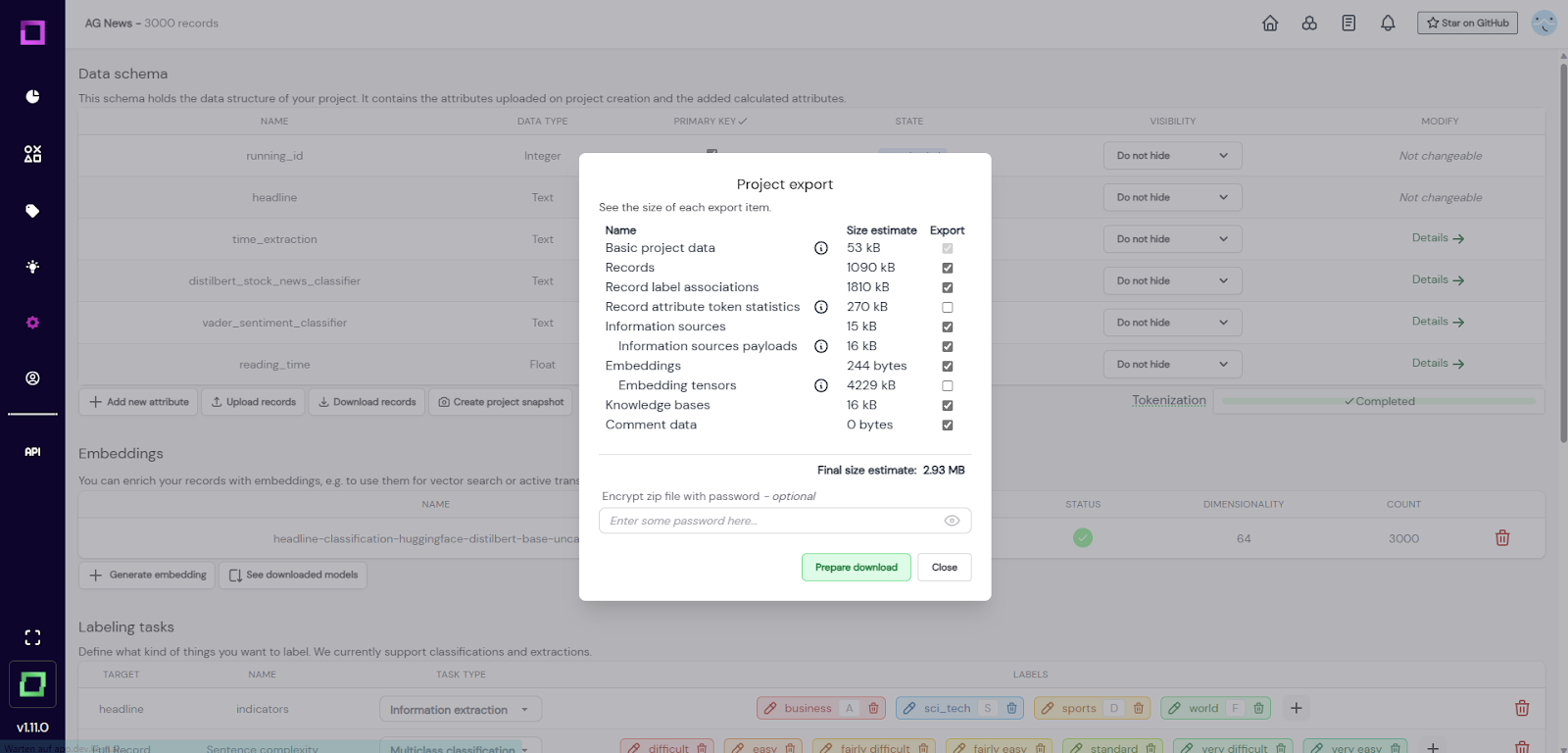
Fig. 3: Modal that appears after selecting the project snapshot creation.
You can customize the export to your needs (see Fig. 3), e.g. you could include the embedding tensors, which requires more disk space but saves on computation time when importing it back into refinery. Just like the "download records" option, you can also specify a password that protects the resulting zip file.